 Amplia
Measure area from any photo or image
Calibrate the image with one known distance, draw a polygon or circle, and get the area right away — in metric or imperial units. Works on floor plans, drone shots, maps, and technical drawings.
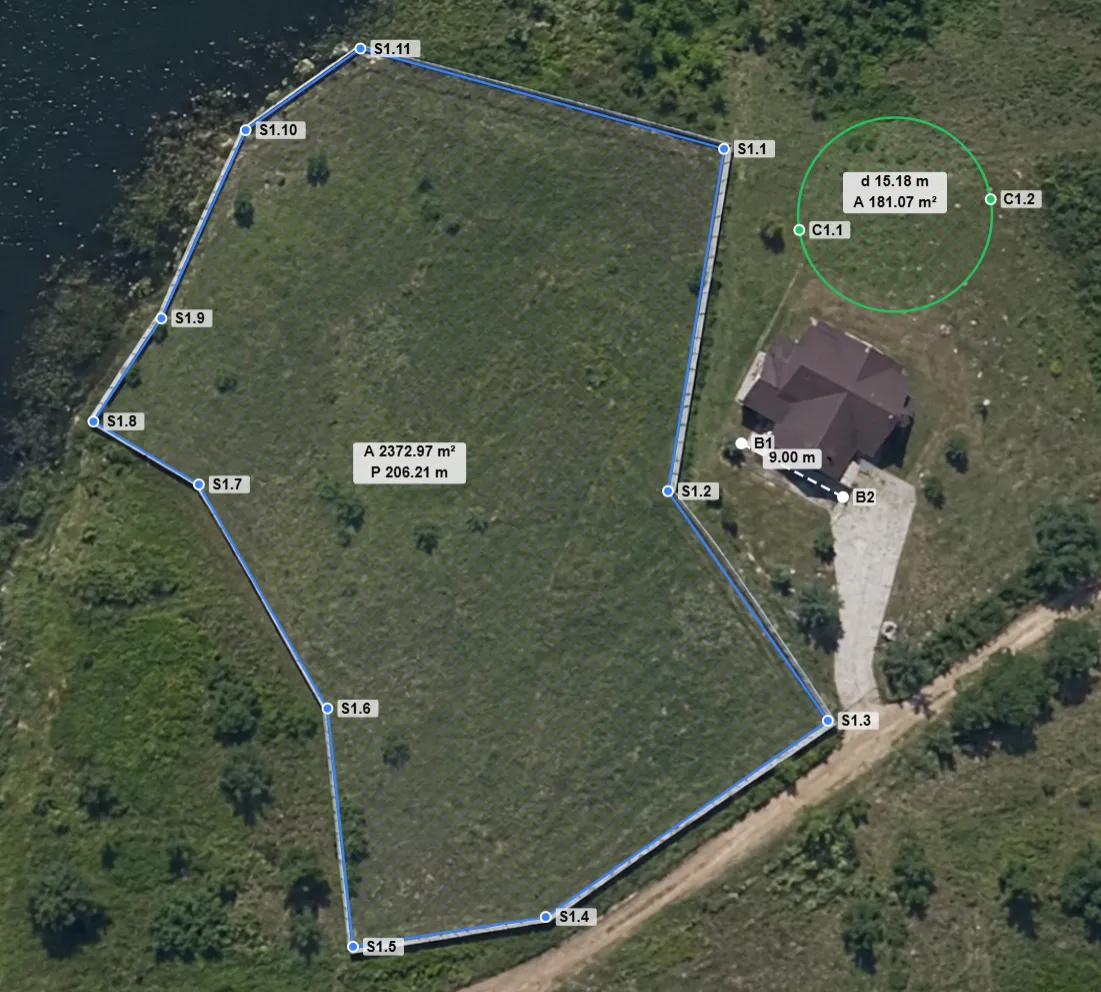
How area measurement works
Amplia turns any image into a measuring surface in two steps.
Calibrate the image
Mark two calibration points on the image and tell the app the real-world distance between them — for example, “these two marks are 2 meters apart.” Amplia works out a pixel-to-unit scale from that reference.
Draw the shape
Use the Polygon tool to outline any region, or the Circle tool, where two clicks set the diameter. The area appears right away, in the unit system you chose.
Area is derived from the pixel geometry, scaled by the calibration ratio. For a polygon it comes from the outline you draw; for a circle, from the diameter you set.
When it's accurate — and when it isn't
When it's accurate
- The subject is flat — a floor plan, a field viewed from above, a wall, a tabletop.
- The camera was roughly perpendicular to the surface, with no strong tilt.
- The calibration reference is on the same plane as what you're measuring.
- The calibration distance is as long as possible relative to the image — a short reference amplifies rounding error.
When accuracy drops
- Perspective or camera tilt — distorts farther regions and skews areas near the edges of the frame.
- Curved surfaces — a barrel, a hill, or a rounded wall cannot be measured accurately from a flat projection.
- Short calibration reference — small drawing errors translate into large real-world errors.
- Calibration on a different plane — measuring a wall while calibrating against a floor introduces a systematic scale error.
- Lens distortion — fisheye or wide-angle lenses bow straight lines, and the app has no lens-correction step.
The one thing you always control is the calibration. Pick the longest known distance you can find on the same plane as your subject — it does more for accuracy than anything else you can change after the photo is taken.
Supported units
The units Amplia supports, grouped by system and subsystem.
Area
Metric
| Symbol | Name |
|---|---|
| mm² | square millimeter |
| cm² | square centimeter |
| m² | square meter |
| km² | square kilometer |
| ha | hectare |
| nm² | square nanometer |
| μm² | square micrometer |
| Ų | square angstrom |
| a | are |
| pm² | square picometer |
| dm² | square decimeter |
Imperial
| Symbol | Name |
|---|---|
| in² | square inch |
| ft² | square foot |
| yd² | square yard |
| mi² | square mile |
| ac | acre |
| mil² | square mil |
Astronomical
| Symbol | Name |
|---|---|
| AU² | square astronomical unit |
| ly² | square light-year |
| pc² | square parsec |
| ls² | square light-second |
| lmin² | square light-minute |
| kpc² | square kiloparsec |
| Mpc² | square megaparsec |
| Gpc² | square gigaparsec |
Surveying
| Symbol | Name |
|---|---|
| rd² | square rod |
| ch² | square chain |
| ro | rood |
Nautical
| Symbol | Name |
|---|---|
| nmi² | square nautical mile |
Practical use cases
Anywhere you have an image and a known distance, you can measure area.
Architecture & construction
Estimate floor area from a plan photo or an overhead drone shot. Measure wall sections for tiling, painting, or cladding quotes.
Agriculture & land
Estimate the area of a crop patch or field from a satellite or drone image. Measure irrigation zones and plot subdivisions.
Interior design
Calculate carpet or flooring area from a room plan. Measure countertop or backsplash areas from a photo.
Engineering & manufacturing
Measure cross-section areas on technical drawings or part photos. Estimate the surface area of flat components.
Real estate
Run quick area checks on floor plan images before a formal survey. Verify room dimensions from listing photos, as long as the surface you measure is flat.
Education & research
Measure geographic features on maps — lakes, clearings, building footprints. Do planimetry on scanned field sketches and diagrams.
Frequently asked questions
?What units can I measure area in?
Any unit you calibrate with. Set the reference distance in meters and you get square meters; set it in feet and you get square feet. Amplia supports metric, imperial, surveying, nautical, and astronomical area units.
?Can I measure area on a drone or satellite image?
Yes — these are among the best images to use, because the camera is roughly perpendicular to the ground. Calibrate against a known distance in the image, such as a road width, a building edge, or a marker you placed, and then draw your shape.
?How accurate is the measurement?
Accuracy depends mostly on the image. If the subject is flat, the camera was perpendicular, and the calibration reference is long and on the same plane, results are typically within a few percent. Tilt, lens distortion, and curved surfaces all reduce accuracy.
?Can I measure irregular shapes?
Yes. The Polygon tool lets you outline any region with as many points as you need. For circular regions, two clicks with the Circle tool set the diameter. For smooth outlines, the Curve area tool (PRO) fits a smooth contour through your points and reports both its perimeter and area.
?Is my image uploaded to a server?
Not when you measure without an account — the image stays on your device and all processing happens in your browser. If you sign in and save your work as a project, the image is stored securely in the cloud so you can reopen it later, and you can delete it at any time.
Measure your first area in under a minute
Open the app, load your image, calibrate once, and start drawing. No account needed to measure.